New & Improved Auto Translate
Multi-Language Messaging Just Got Easier!

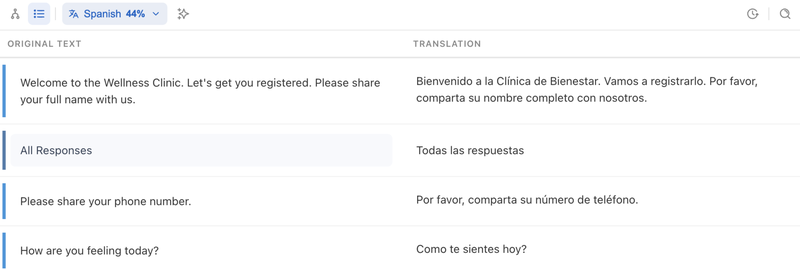
Building multi-language flows just got significantly faster and easier! Flow Translations have been updated with three key improvements: a built-in AI option for auto-translate, a new table view for managing translations, and clearer support for localizing response rules.
Built-in AI for Auto Translate
Auto Translate now includes a built-in AI model, so no setup is required to translate a flow. Open a multi-language flow, select a secondary language, and click on Auto Translate✨. Choose your LLM and the translation runs immediately, with a progress indicator showing completion status (also available for manual translations).
Prefer to use your own AI model? No problem. Under Settings → Artificial Intelligence, connect a Large Language Model such as OpenAI or Anthropic by adding your API key. Once configured, your integrated LLM will show as an option in place of TextIt’s built-in one — useful for organizations with provider standardization or data-security requirements.
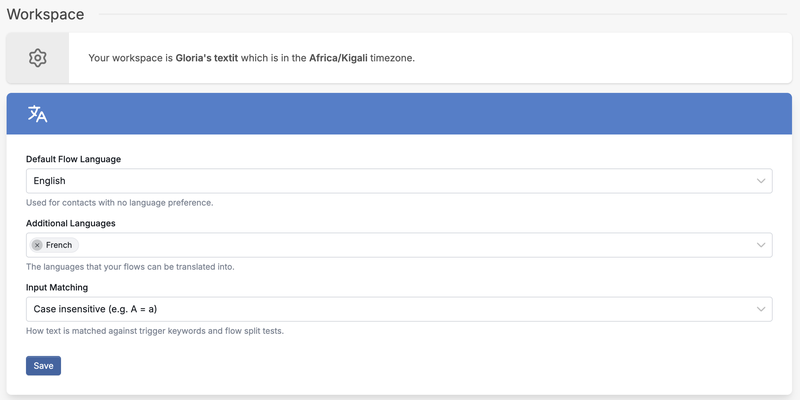
Make sure your secondary languages are set up under your account's language settings, before opening the flow you want to translate!
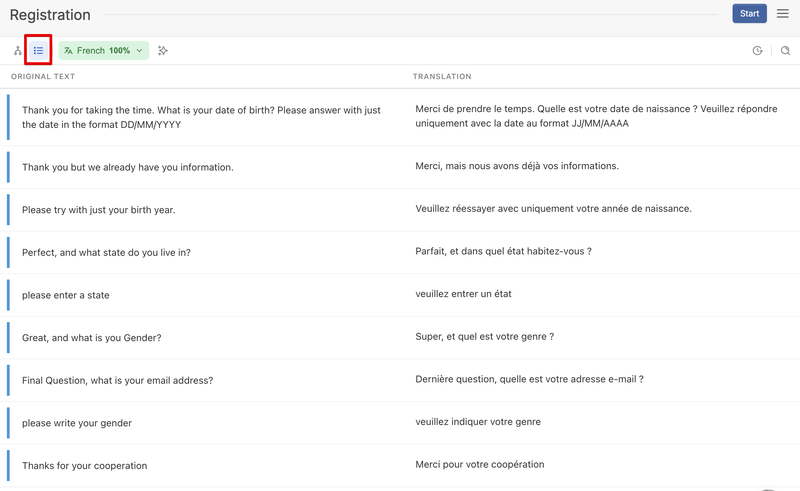
Translate in Table View
Translations can now be managed in a new table view. Instead of clicking through each Send Message node individually, table view shows all translatable nodes as rows, with the primary-language text alongside the translated version. This makes it much faster to review AI-generated translations for tone and consistency, hand off work to a translator, or conduct a final review pass before launch. The original node-by-node editing remains available.
Localize Your Response Rules
One step that's often overlooked: when a flow is auto-translated, Send Message text is translated automatically, but response rules in your Wait for Response nodes are not localized by default.
This matters because Wait for Response nodes evaluate a contact's reply against rules you define — such as matching "yes" or "cancel." If your prompts are translated into Spanish but the rules only match the English term, Spanish-speaking contacts will fall through to a fallback path.
To localize responses, open each Wait for Response node and choose whether or not to set localized rules for that ‘wait’. Repeat for each language the flow will be translated into. For a yes/no question, English rules yes / no should be accompanied by sí / no for Spanish, oui / non for French, and so on. After running Auto Translate, review each Wait node to confirm response rules are localized for every language in the flow where necessary.
In Practice
LLM-generated translations are accurate in most cases but not infallible. For content where precision is critical — medical, legal, or financial — have a fluent reviewer validate the output before sending. It’s also a good idea to review for tone!
Multi-language flows shouldn't be a barrier to reaching your contacts in the language they actually want to hear from you in! Our new built-in AI option for auto-translate makes multi-language flows that much faster to build without compromising quality!
More from the blog

Changes Coming to Tickets
We have some exciting new features on the way, but we need to make a couple of small changes to tickets in preparation.

A New Look For Campaigns
Smarter Reminders, Fewer No Shows

Meeting People Where They Are
How Early Alert Uses TextIt to Reach Students & Veterans Before a Crisis